
A room layout generator turns a set of inputs—room dimensions, door/window placement, and furniture sizes—into multiple arrangement options you can compare quickly. Many tools go a step further with style suggestions, color palettes, and simple 3D previews, which can be helpful when you’re deciding where a conversation zone, TV wall, desk, or bed should live. For more guidance, see AI Room Planner – Design & Render Realistic Room Free Online.
What it can’t do is measure for you. A layout can look perfect on-screen and still fail in real life if door swings, HVAC vents, outlets, radiators, or built-ins weren’t entered accurately. The biggest difference between “pretty render” and “livable room” is using real furniture dimensions—including arms, base overhang, and the extra space needed for recliners, drawer pull-outs, or extending tables. For further reading, see How to Use AI to Decorate a Room (Step-by-Step Guide) – Decory.ai.
Start with wall-to-wall measurements, then capture anything that reduces usable space: niches, columns, baseboard heaters, sloped ceilings, or awkward bumps. Next, mark every fixed element: doors (with swing direction), windows (including sill height), closets, fireplaces, and built-ins. These features shape where large pieces can realistically go.
Outlets and switches matter more than most people expect. A bedroom layout that forces phone charging across the room, or a living room plan that strands lamps without nearby power, often leads to cords in walkways and daily friction. If you’re considering tall storage, pendant lights, or a ceiling fan, note ceiling height and existing lighting locations as well.
| Input | Why it changes the layout | Quick way to capture it |
|---|---|---|
| Room length/width (usable) | Defines the maximum furniture footprint and circulation lanes | Tape measure + sketch or phone notes |
| Door locations + swing | Prevents blocked entries and collisions with furniture | Mark hinge side and arc on a sketch |
| Windows + sill height | Affects bed headboards, desks, and TV glare | Measure floor-to-sill and width |
| Fixed features (radiator, fireplace, built-ins) | Creates no-furniture zones and focal points | Note width/depth and clearance needs |
| Furniture dimensions | Ensures the plan is buildable and comfortable | Use product specs; include depth and clearance |
| Traffic paths | Keeps movement comfortable between key zones | Identify the most-used routes (door-to-sofa, door-to-closet) |
Enter the room shell first, then place doors and windows precisely rather than “close enough.” Small inaccuracies compound once furniture is added. If your tool supports it, lock fixed items (fireplace, radiators, built-ins) and create no-go zones so the generator can’t propose impossible placements.
Keep units consistent (inches or centimeters), and choose a scale or snap-to-grid setting that matches how precise you want to be. Add furniture using real measurements whenever you can; if you don’t know the final piece yet, use a conservative placeholder (slightly larger is safer than slightly smaller). Finally, name zones—sleep, lounge, work, dining—so the tool optimizes around how the room should actually function.
Next, test sightlines. Check TV viewing angles and glare from windows, and position a desk so daylight helps rather than reflecting directly into your eyes. If you want a sanity check for accessible movement, reviewing the ADA Standards for Accessible Design is a helpful reference point for thinking about comfortable pathways.
| Area | Recommended clearance range | What to watch for |
|---|---|---|
| Main walkway | 30–36 in (76–91 cm) | Pinch points near doors and between sofa + coffee table |
| Behind dining/desk chairs | 30–36 in (76–91 cm) | Chair backs hitting walls or cabinetry |
| Bed sides (primary access) | 24–36 in (61–91 cm) | Nightstand space and ease of making the bed |
| In front of dressers/closets | 30–42 in (76–107 cm) | Drawer/door swing conflicts |
| Door swing zone | Keep fully clear | Furniture corners inside the swing arc |
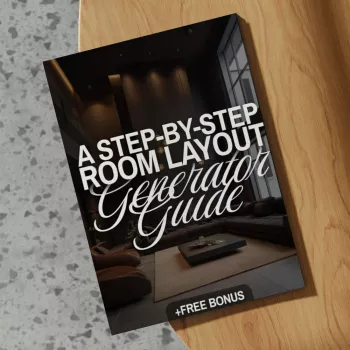
If you want a repeatable workflow you can use room after room, A Step-by-Step Room Layout Generator Guide (Digital Download) is built for quick wins: measure, generate multiple options, validate clearances, and finalize a plan that supports daily routines and home decor choices.
For the real-world walk-through step, comfortable footwear can make it easier to take your time while you check pinch points and pathways—especially on hard floors. Options like Birkenstock Women’s Beige Suede Slippers with Buckle and Bow or Calvin Klein Jeans Women’s Beige Sneakers can help you move around and test the room without rushing.
You’ll want usable room length/width, exact door and window locations (including door swing), and any fixed features like radiators, fireplaces, and built-ins. Use accurate furniture dimensions from product specs, and include extra clearance for drawers, chair pull-out space, and recliners.
Confirm clear circulation routes first, then check door swings, chair pull-out space, and drawer/closet clearances. Finish with a routine walk-through for daily tasks like entering the room, cleaning, and accessing storage.
Most cramped layouts come from approximate inputs, missing no-go zones, or placeholder furniture sizes that are smaller than real pieces. Using precise measurements, locking fixed constraints, and adding buffer margins typically resolves the issue quickly.











Leave a comment